User Interface
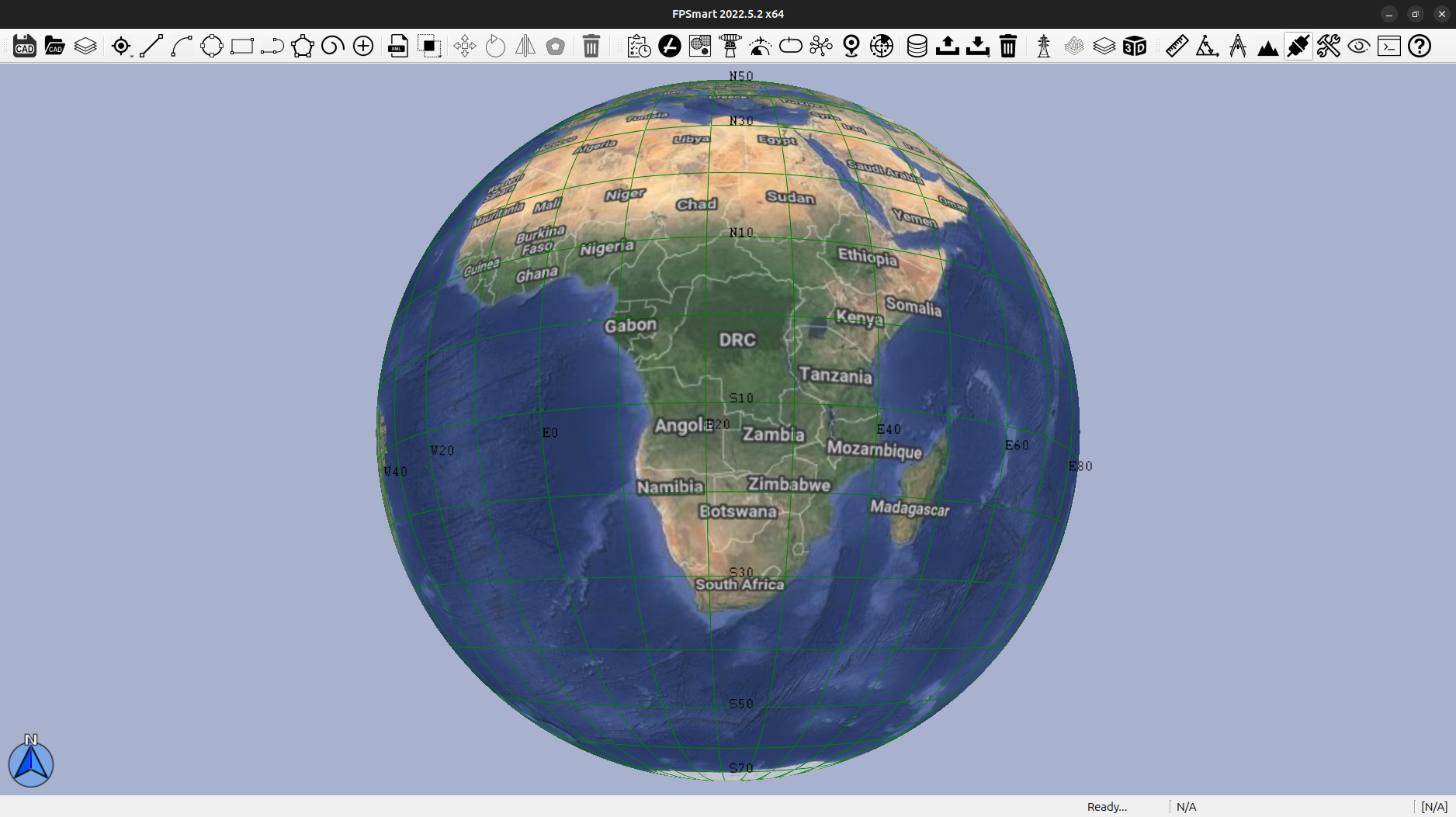
FPSmart features a minimalist user interface designed to streamline interactions and focus on essential functionalities. This section provides an overview of the main components of the user interface and explains how to customize it to suit your preferences.
Overview of FPSmart’s User Interface
The user interface of FPSmart is designed with simplicity and efficiency in mind. It primarily consists of toolbars, contextual menus, and a 3D globe environment. Here's a detailed look at its main components:
- Dashboard:
Description: The Dashboard is the central hub of FPSmart, providing an overview of your current project and key metrics. It often displays summaries, notifications, and quick access to recent activities or projects.
Usage: Use the Dashboard to monitor project progress, access recent files, and get important updates. It serves as a launching point for various tasks and operations within FPSmart.
- Menu Bar:
- Overview of Menu Options:
File: Includes options for opening, saving, exporting, and managing projects.
Edit: Provides tools for undoing and redoing actions, cutting, copying, and pasting data.
View: Allows you to adjust the display settings, such as zoom levels and visibility of different layers.
Tools: Contains access to various analysis tools and utilities specific to your project needs.
Help: Offers access to the user manual, tutorials, and support resources.
- Toolbars:
Description: Toolbars provide quick access to frequently used tools and functions. They are designed to be intuitive and easily accessible.
- Functions:
Navigation Toolbar: Includes tools for pan, zoom, and tilt controls. These tools allow you to navigate and adjust your view of the 3D globe.
Drawing Tools Toolbar: Contains tools for creating and manipulating geometric shapes such as lines, arcs, polygons, and rectangles.
Analysis Tools Toolbar: Offers access to spatial analysis functions like buffering, overlay analysis, and geodesic computations.
Customizing the Interface
Grayscale Imagery
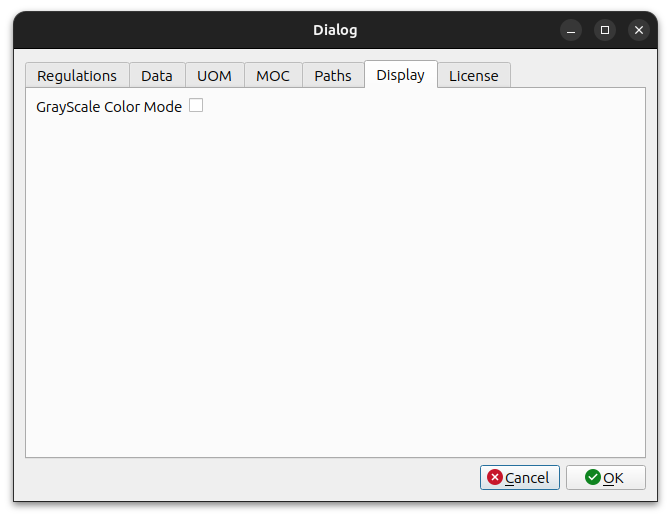
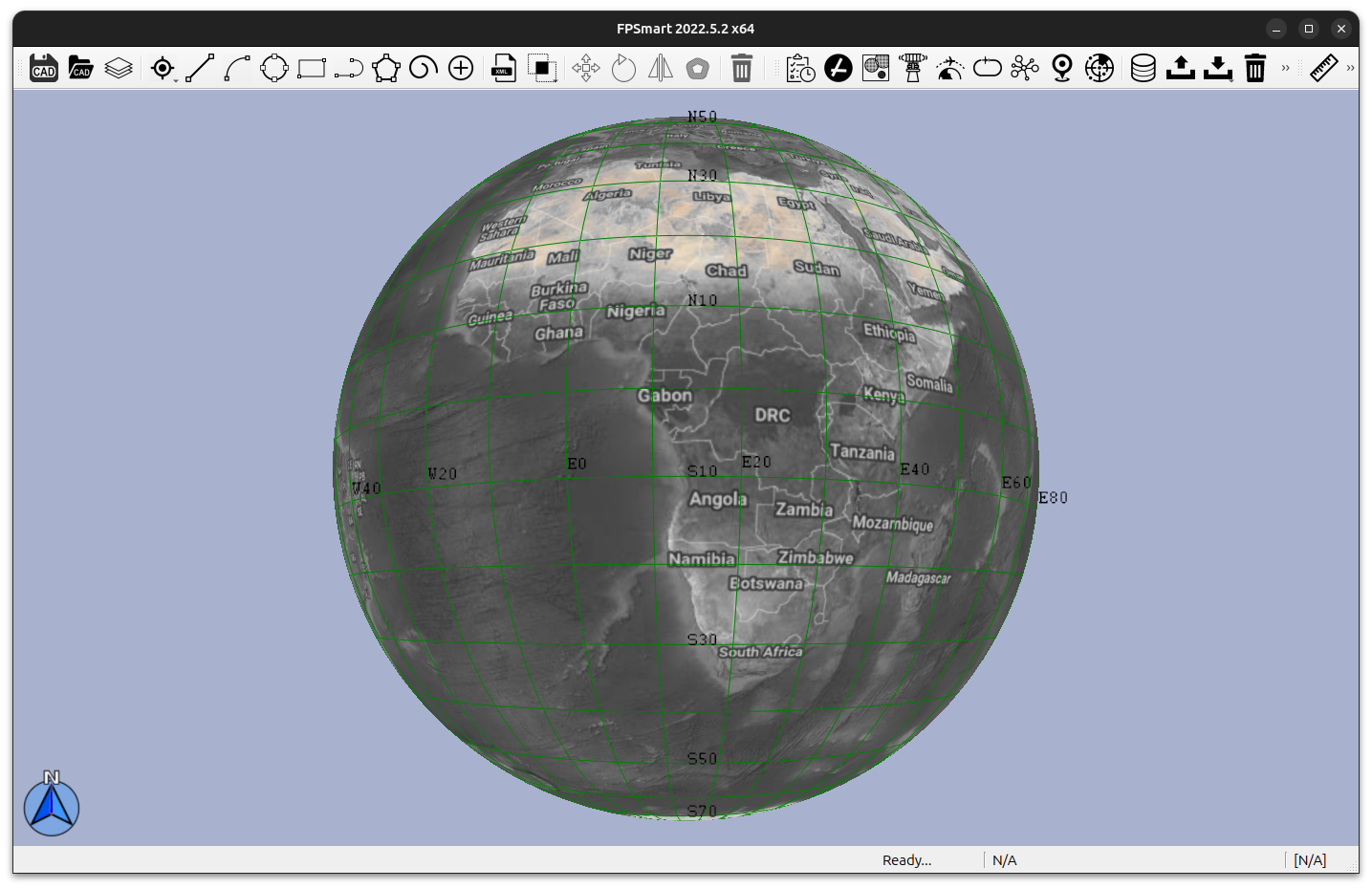
The grayscale mode is activated in order to ensure the contrast betwwen the background and the active features :
Field of view
FPSmart allows you to customize the interface to better suit your workflow and preferences. Here’s how you can customize toolbars and menus:
- Customizing Toolbars:
- Add or Remove Tools:
Right-click on the toolbar area and select "Customize Toolbars" from the context menu.
In the customization dialog, you can add or remove tools by dragging and dropping them onto the toolbar.
- Rearrange Toolbars:
Drag and drop toolbars to rearrange their position or to dock them in different areas of the interface.
- Toolbar Layout:
Adjust the size and layout of toolbars to fit your screen resolution and personal preferences.
- Customizing Menus:
- Modify Menu Options:
Access the menu customization settings by going to Preferences > Customize Menus.
Here, you can add new menu items, remove existing ones, or reorder them according to your needs.
- Contextual Menus:
Customize contextual menus (right-click menus) to include the tools and options you use most frequently.
This can be done through the Context Menu customization settings in the preferences.
By understanding and customizing FPSmart’s user interface, you can optimize your workflow, making it easier and more efficient to design and validate flight procedures. The minimalist design, combined with intuitive controls and customization options, ensures a user-friendly experience tailored to your needs.